Display mode and colors
Select the 3D Viewer plugin on your product page in the Editor.
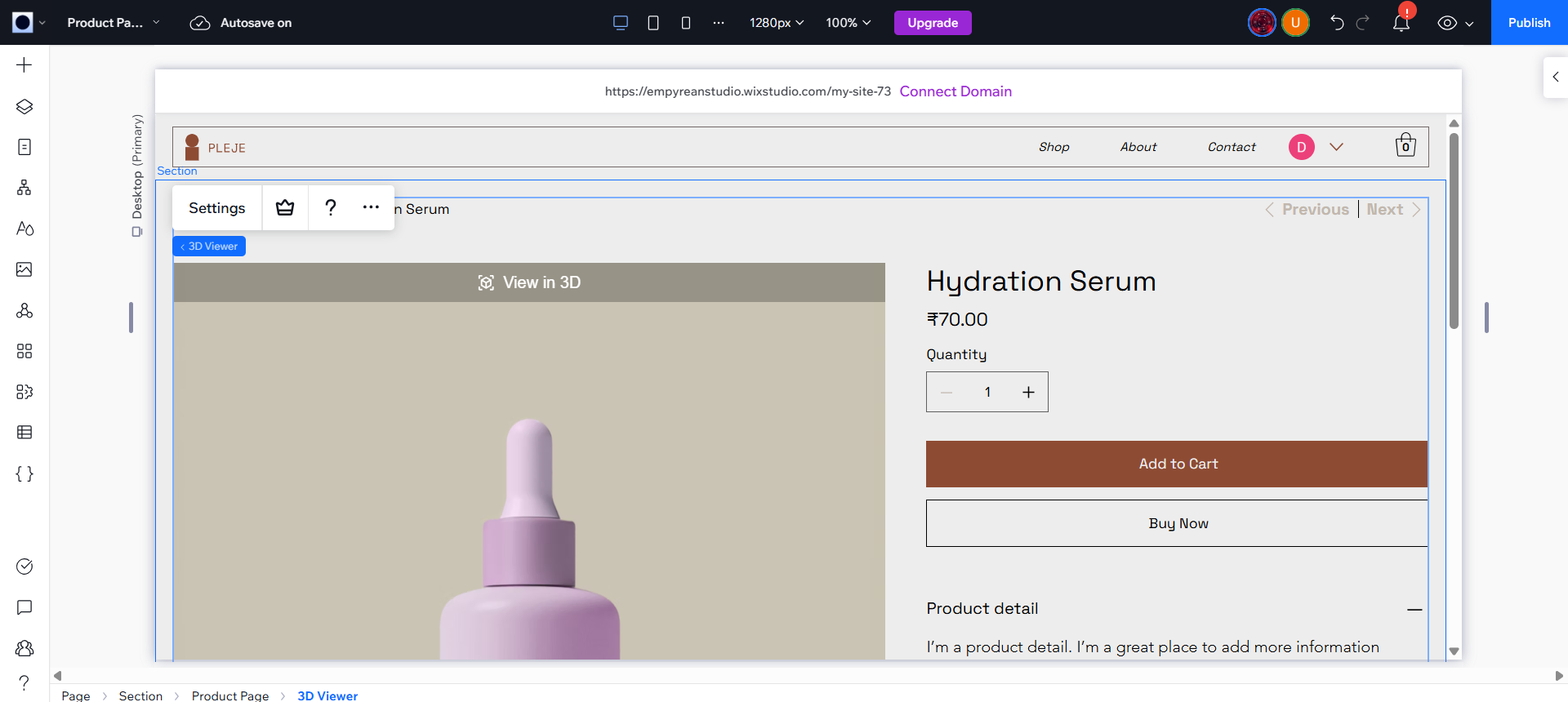
Click Settings in the plugin's toolbar.
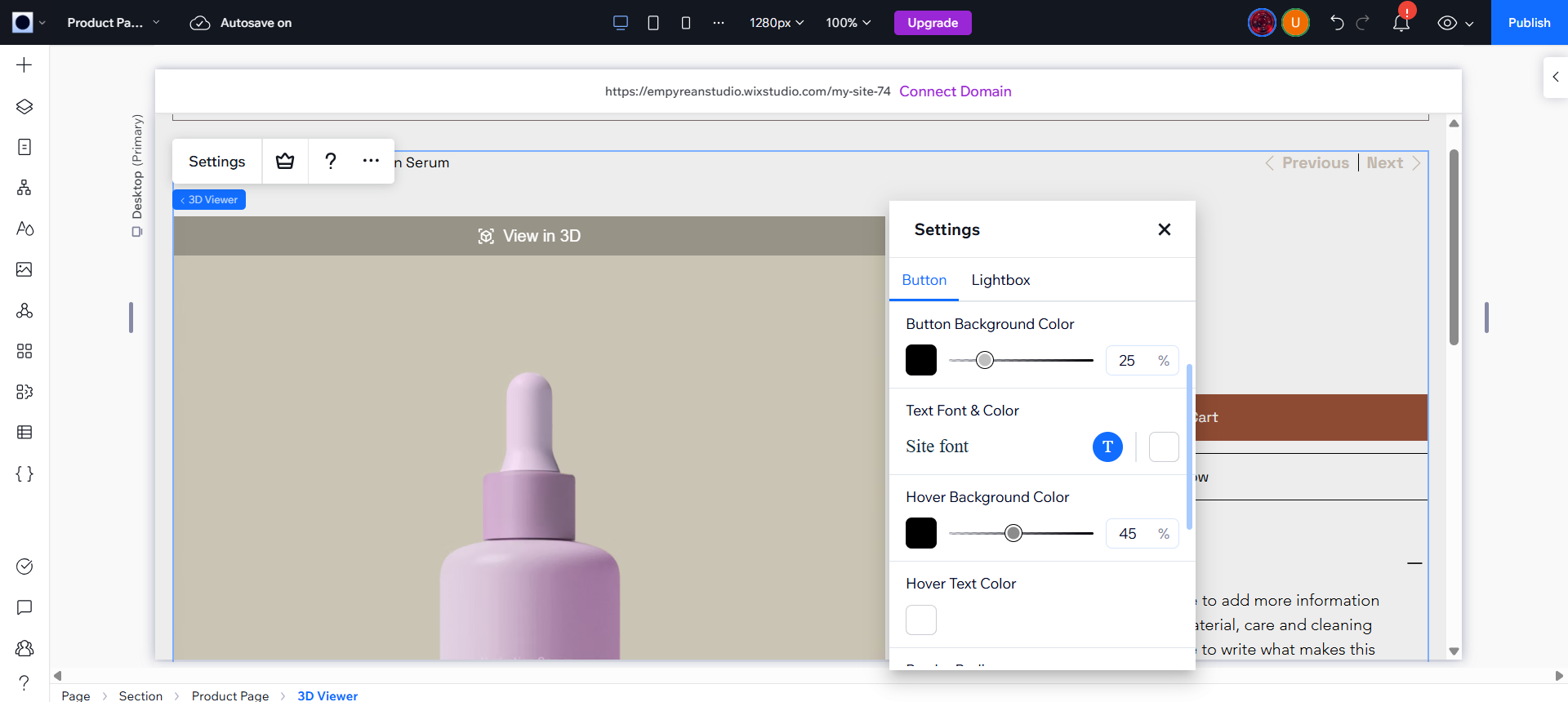
Viewer Display Mode decides how the viewer opens. Below it, two tabs hold the look: Button, and Lightbox (or Inline, when that is your display mode).
Display mode
| Mode | What it does |
|---|---|
| Lightbox | Opens the viewer over the page. This is the default. |
| Inline | Shows the viewer in the page, in the position where you placed the plugin. |
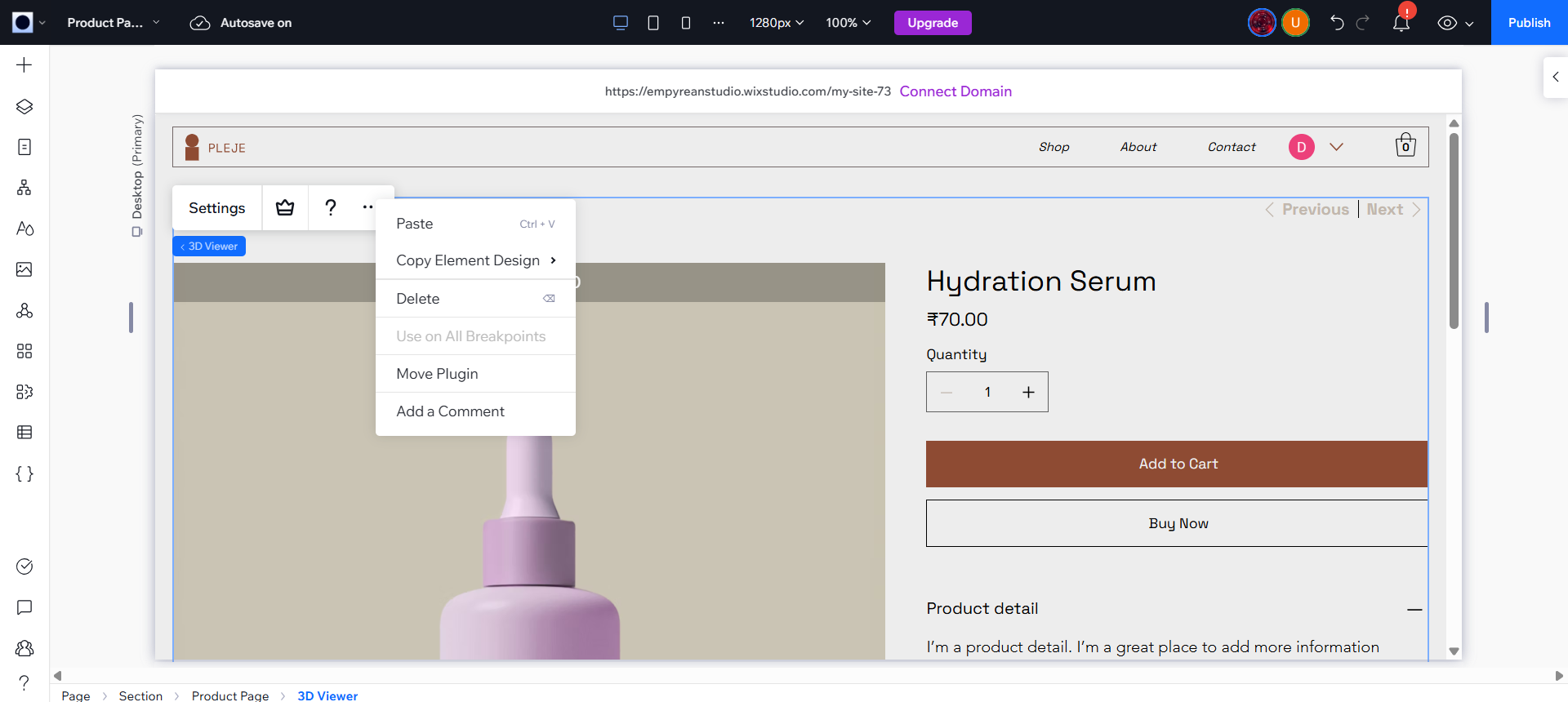
Inline is greyed out in the media position (Position 1) and in the five older-page-only positions. To use Inline, move the plugin to another position: open the plugin's menu (... next to Settings) and choose Move Plugin.
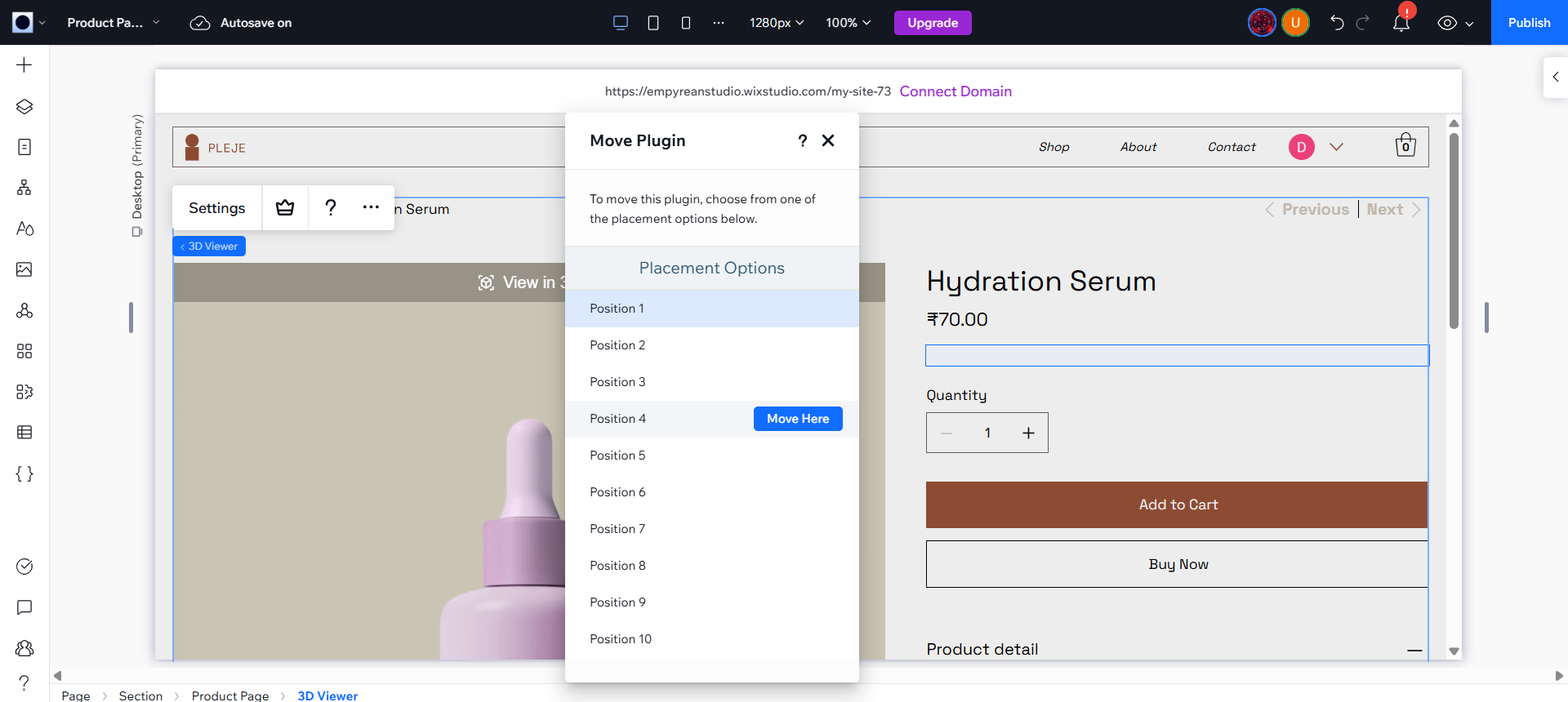
Pick a position in the list and click Move Here.
If a product page cannot show an inline viewer, the viewer opens in a lightbox instead.
Button tab
These settings style the View in 3D button.
| Setting | What it does | Default |
|---|---|---|
| Button Background Color | The button color, with an opacity slider. | Black, 25% |
| Text Font & Color | The font and color of the button text. | Site font, white, 16 px |
| Hover Background Color | The button color when a visitor points at it, with an opacity slider. | Slightly brighter |
| Hover Text Color | The text color when a visitor points at the button. | Not set |
| Border Radius | How round the corners are, 0 to 48 px. | 0 px |
| Shadow | None, Soft, Medium, Strong, Deep or Floating. | None |
Lightbox tab
These settings style the viewer window when it opens over the page.
| Setting | What it does | Default |
|---|---|---|
| Background Opacity | How dark the page behind the viewer is, 0 to 100%. | 38% |
| Background Blur | How much the page behind is blurred, 0 to 40 px. | 14 px |
| Border Radius | How round the viewer's corners are, 0 to 48 px. | 14 px |
| Shadow | None, Soft, Medium, Strong, Deep or Floating. | Strong |
Inline tab
When the display mode is Inline, the second tab is named Inline. It has Border Radius and Shadow. The background settings only apply to a lightbox.
Tip
Changes show on the button in the Editor as you make them.