Dashboard overview
In your Wix dashboard, go to Apps → 3D Media Viewer. The Store Product Catalog page lists your store's products. This is where you attach 3D files to them.
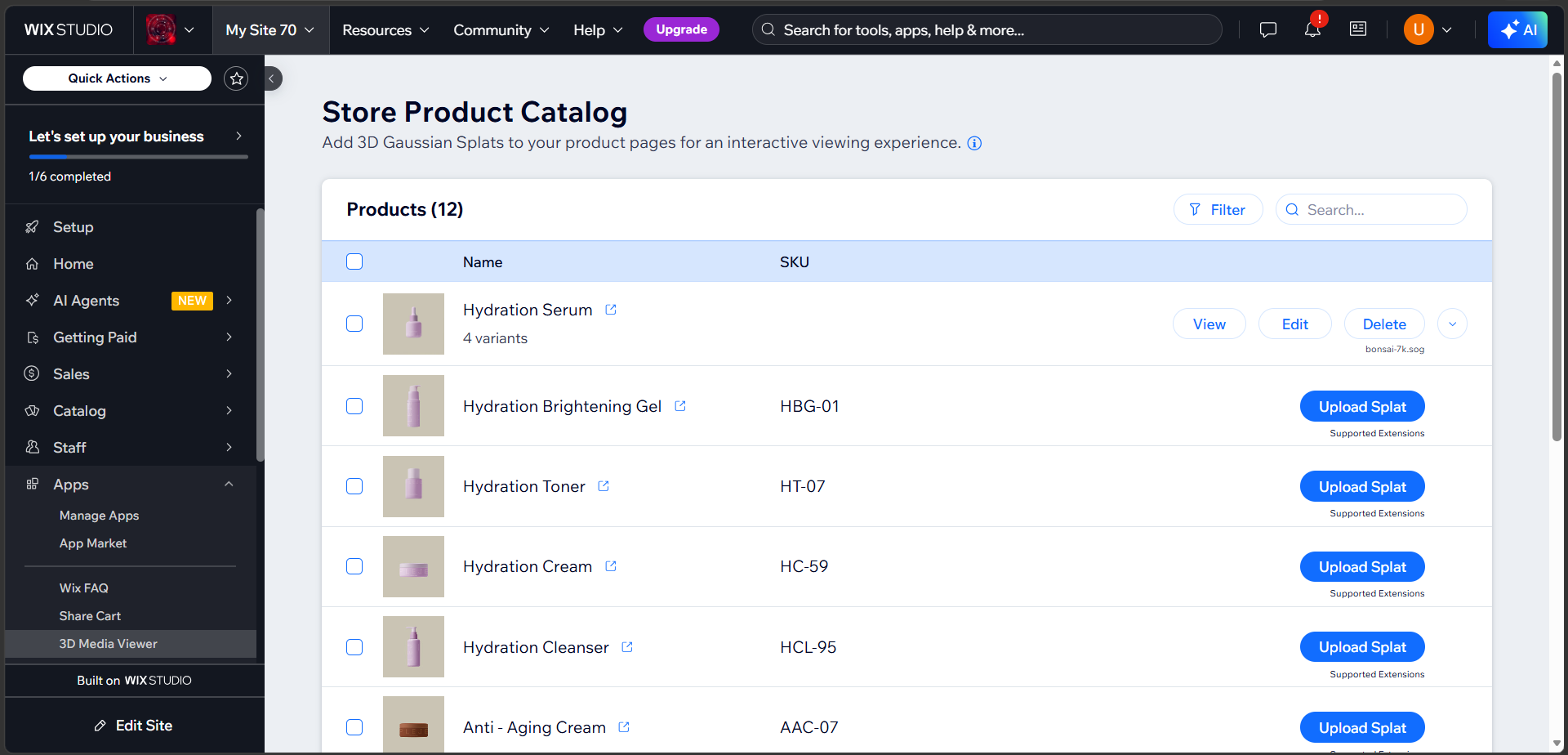
What the page shows
- Products, with the number of products in your store.
- Filter and Search at the top right. See Filter your products.
- A Name and SKU for each product, with a thumbnail. The small arrow icon next to a name opens the product on your live site.
- An arrow at the end of a product's row when it has variants. Click the arrow, or anywhere on the row, to show or hide them. See Variants.
- An info icon next to the page subtitle, with a link to convert your file.
At the top right, you may also see:
| Button | When it appears |
|---|---|
| Add widget to Site | The viewer is not on your product pages yet. Click it to add it. |
| Purchase Premium Plan | Your free trial has not started, or it has ended. See Plans and free trial. |
Actions for each product or variant
| Action | What it does |
|---|---|
| Upload Splat | Attach a .zip containing your 3D file. |
| View | Preview the initial view image. |
| Edit | Open the viewer to adjust the splat and set its initial view. See Initial view. |
| Delete | Remove the 3D file. |
Under Upload Splat, Supported Extensions opens the list of formats a ZIP can hold. See Supported formats.
Work on several products at once
Tick the checkbox next to a product or variant to select it. The checkbox in the header row selects every product in the list.
When something is selected, the toolbar changes to show N selected with two buttons:
| Button | What it does |
|---|---|
| Upload For Selected | Pick one ZIP and add it to everything you selected. |
| Delete For Selected | Remove the 3D file from every selected item that has one. A confirmation asks first. |
Good to know
- Selecting a product also selects its variants. The number in each button counts products and variants.
- Delete For Selected only counts items that actually have a 3D file.
- If you upload to a product and its variants together, the variants use the product's file. A variant's own file is replaced.
- Only rows you can see are selected. If you filter or search, hidden rows drop out of the selection.
Who can make changes
Only people who sign in to the site dashboard can upload or delete 3D files. Site members and visitors cannot.