Initial view
The initial view is where the camera starts when a visitor opens your 3D model. It also gives the preview image that you see when you click View.
Set the initial view
- Click Edit on a product or variant. A window opens with the product and variant name, for example Hydration Serum - Small, and the name of the 3D file.
- Click Set Initial View. A blue frame appears around the viewer.
- Move the camera to the angle you want.
- Click Save Initial View.
Click Close to leave without saving.
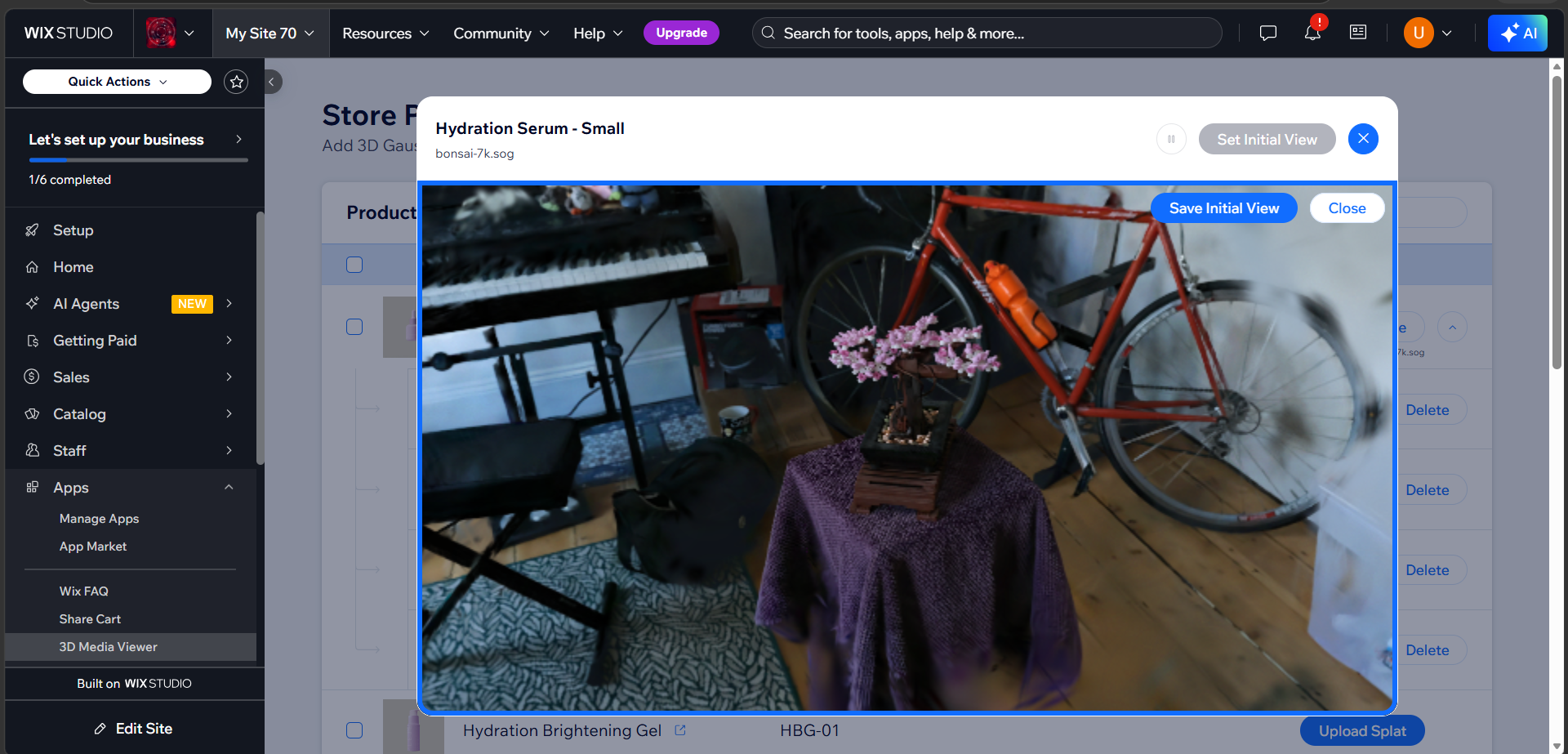
While you are setting the view, the viewer's own play and pause buttons are switched off, so the scene stays still.
The buttons in the Edit window
| Button | What it does |
|---|---|
| Set Initial View | Starts editing. It is greyed out when your ZIP includes its own poster, because that image is always used. Hover it to read This ZIP includes its own poster. |
| Pause / Play (top right) | Sets whether the animation plays automatically in the viewer on your site. The tooltip reads Pause Animation in Site Viewer or Play Animation in Site Viewer. It is saved for this product or variant. |
Note
The play button inside the viewer only controls this preview. It does not change what visitors see.
What the viewer uses
The viewer picks the camera and the preview image in this order.
Camera
- The camera in the ZIP's
settings.json, if it has a valid one. See Customize your 3D file. - The initial view you saved in the dashboard.
- The viewer's default camera.
Preview image
- An image inside the ZIP, such as
poster.png, if it has one. - The initial view image created from the dashboard.
Products and variants
| Situation | What is used |
|---|---|
| A variant has its own file | That file, and the variant's own initial view. It does not inherit the product's camera or image. |
| A variant uses the product's file | The product's file, then the variant's initial view, then the product's initial view. |
Tip
If your ZIP contains a settings.json with a camera, it always wins over a saved initial view.
To use the dashboard's initial view instead, leave the camera out of the ZIP.