Variants
If a product has variants (for example, sizes or colors), its row shows the number of variants, such as 4 variants, and an arrow at the end of the row.
Click the arrow, or the product row, to show the variants. Click it again (Hide Variants) to hide them. Each variant has its own row with its image, name and SKU.
Which 3D file does a variant show?
- By default, a variant shows its product's 3D file. Upload once on the product row, and every variant uses it. The variants then show View, Edit and Delete.
- A variant can have its own 3D file. Its file name is then shown under its buttons.
- A variant that uses the product's file does not show a file name. The file is named on the product row.
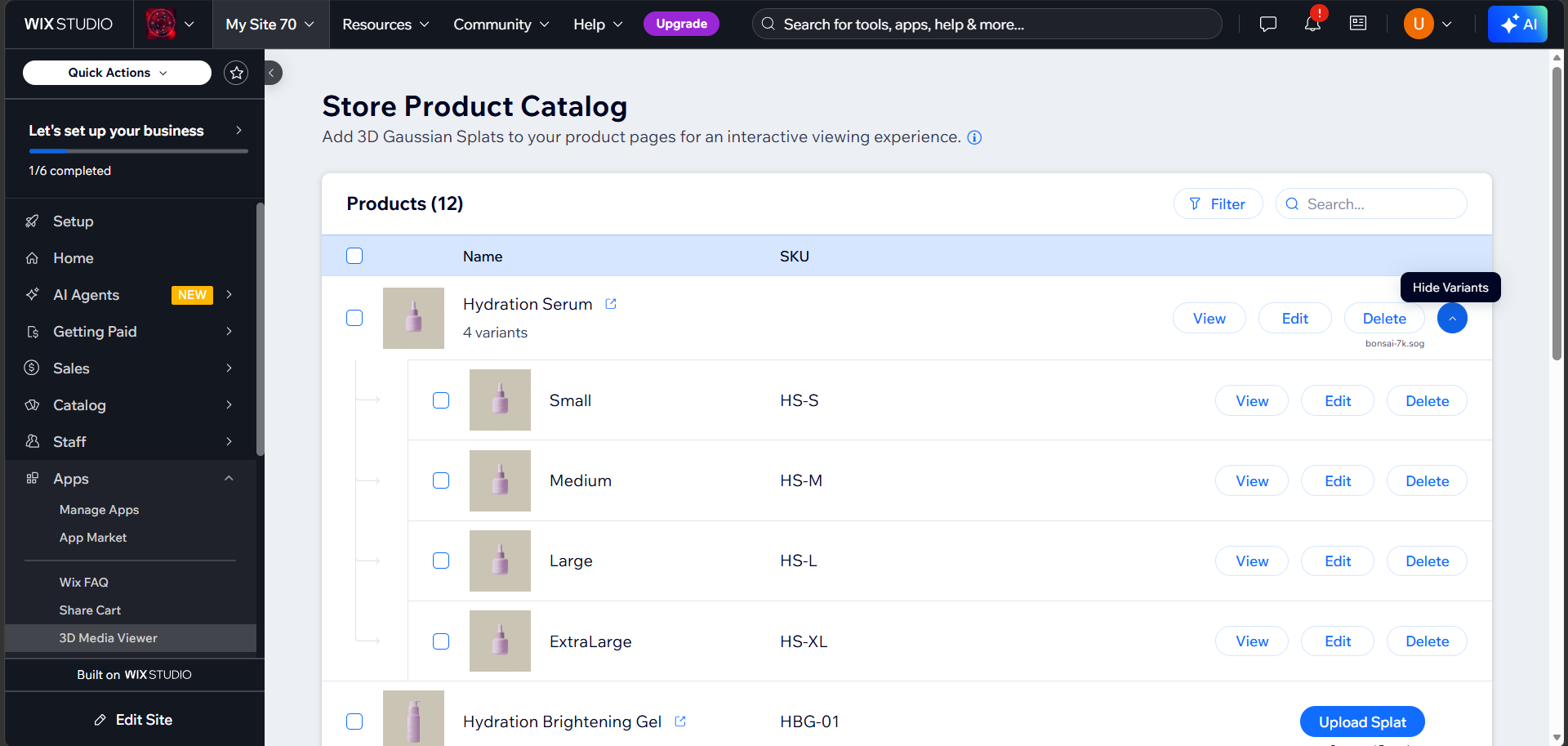
Example
A chair has a red and a blue variant. Upload one splat to the chair, and both variants show it. Give the blue variant a different splat, and only blue changes.
Give a variant its own file
When a product already has a file, its variants show View, Edit and Delete instead of Upload Splat. To give one variant a different file:
- Click Delete on that variant and confirm. This only hides the 3D file for this variant. The product and the other variants keep theirs.
- The variant row now shows Upload Splat. Click it and upload the ZIP for this variant.
The same steps work to switch the viewer off for one variant: do step 1 and stop there.
Uploading on the product replaces variant files
If you upload a new file on the product row, every variant uses it. Any file a variant had of its own is removed, and a message tells you how many variants were changed.
Initial view per variant
A variant can keep its own initial view while still using the product's 3D file. This lets you show the same model from a different angle.
A variant with its own ZIP uses that ZIP's settings.json and poster. It does not inherit the product's camera or image.